
How to Send Professional Invoices and Contracts That Get You Paid (LeadCatch Tutorial)
By Keven Bermeo · · 20 min read
Too many pressure washers have the same problem: they do the job, the customer finds something to complain about, and suddenly they're refusing to pay until you "fix" imaginary issues. This happens because you didn't set boundaries with a professional contract.
I'm going to show you exactly how to send professional estimates, invoices, and contracts that protect your business and ensure you get paid for the work you do.
🔧 Need lead generation too? See how LeadCatch generated $25K in sales
The Problem: No Boundaries = No Payment
The Common Scenario
Here's what happens to contractors who don't use contracts:
- You go to the client's house for a walkthrough
- You quote the job and shake hands on the price
- Client says "I know you're good for it, let's do it"
- You complete the job
- Client says "You missed a spot on the siding/window"
- Client refuses to pay until you fix it
- You're stuck choosing between not getting paid or doing free work
Why This Happens
When you don't have a signed contract with clear terms, you have no leverage. The client can bully you because there's nothing in writing defining:
- Scope of work (exactly what you're responsible for)
- Payment terms (when payment is due)
- Client responsibilities (what they need to provide)
- Warranty limitations (what you're NOT responsible for)
- Cancellation policy (what happens if they back out)
The Solution: Professional Invoicing System
In this guide, I'll show you how to use LeadCatch software to send:
- Estimates: Professional quotes the customer can accept digitally
- Invoices: Payment requests with integrated Stripe processing
- Contracts: Binding agreements with digital signatures
Step 1: Stripe Integration Setup
Why Stripe?
Stripe allows you to accept credit card payments directly through your invoices. No more chasing checks or hoping clients have cash.
Setup Process (Less Than 5 Minutes)
- Log into LeadCatch
- Navigate to "Get Paid" on the left sidebar
- Click "Integrations" on the right
- Select "Stripe"
- Create a Stripe account (or link existing one)
- Enter your company name and payout details
- Complete verification
What You Need
- Business name
- Bank account for payouts
- Business address
- EIN or SSN (for tax purposes)
Step 2: Creating Client Contacts
Why Create Contacts First?
By creating a contact profile before sending estimates or invoices, you save time and ensure consistency. The system auto-fills client information for all future documents.
Adding a New Contact
- Click the lightning bolt icon on the left sidebar
- Select "Add Contact"
- Enter client's name (e.g., "Anthony Perez")
- Add email address (for invoice delivery)
- Add phone number (for text notifications)
- Click "Save"
Adding Property Address
- Go to "Contacts" in the left sidebar
- Click on the client's name
- Scroll to "General Info" section
- Click to expand
- Enter property address
- Click "Save" at the bottom
Now this client is in your system with all their details saved for future use.
Step 3: Sending Professional Estimates
Estimate vs Invoice: The Difference
Common Mistake: Sending an invoice before the job is confirmed.
Correct Workflow:
- Estimate: Send this after the walkthrough/quote (no commitment yet)
- Invoice: Send this after they accept the estimate and confirm a date
Creating an Estimate
- Navigate to "Get Paid" → "Estimates"
- Click "New Estimate" at the top
- Select the client from dropdown (e.g., Anthony Perez)
- Estimate settings will auto-populate (use unique estimate number)
- Add products/services
Example Services to Add
- Window Cleaning - $150
- Walkway Wash - $200
- Deck Wash - $300
- House Wash - $350
- Driveway Cleaning - $250
Adjust prices as needed for your market and job size.
Sending the Estimate
- Review the estimate preview on the right
- Confirm client information is correct
- Click "Send Estimate" in the top right
What the Client Sees
The client receives a text message and email:
"Hi Anthony, [Your Company Name] sent you an estimate for $1,089. Click here to review."
When they click the link, they see:
- Their name and address
- Your company name and details
- Itemized list of services
- Total amount
- "Accept Estimate" button
When They Accept
After the client clicks "Accept Estimate," you'll see the acceptance in your dashboard. This is your signal to schedule the job and send an invoice.
Step 4: Creating and Sending Invoices
When to Send Invoices
Send an invoice ONLY after:
- Client accepts the estimate
- You've scheduled a specific date to do the work
- Client has confirmed the appointment
Using Invoice Templates
- Go to "Get Paid" → "Templates"
- Find "Pressure Washing Template" (or create your own)
- Click the three dots on the right
- Select "Use One Time"
Customizing Your Invoice
- Add your logo: Upload in the top left
- Select client: Click "Bill To" and choose the client
- Add services: Include all agreed-upon work
- Add descriptions: Be specific about what's included
Example Invoice Items
- House Wash - $350: "Includes front, back, and side exterior surfaces. Removal of dirt, algae, mold, and mildew."
- Driveway Cleaning - $250: "Complete driveway surface cleaning including oil stain treatment."
- Window Cleaning - $150: "Exterior window cleaning for all accessible windows."
Payment Schedules (Optional)
For larger jobs, you can split payments:
Option 1: 50/50 Split
- 50% deposit due immediately
- 50% due upon job completion
Important: Only use payment schedules if it's written in your contract.
Sending the Invoice
- Click "Send Invoice" in the top right
- Choose delivery method: Email + Text (recommended)
- For testing, enable "Test Mode" (use only for practice)
- Click "Send Invoice"
What the Client Receives
"New invoice from [Your Company Name] for $750. Click to view and pay."
When they open the invoice, they see:
- Itemized services with descriptions
- Total amount due
- Your payment terms
- "Pay Now" button (Stripe integration)
Client Payment Process
- Client clicks "Pay Now"
- Enters credit card information (secured by Stripe)
- Option to add tip (5%, 10%, 15%, or custom)
- Clicks "Pay"
- Receives instant confirmation text and email
Payment Confirmation
After payment, the client receives:
"Hi Anthony, we're glad to inform you that we received your payment of $750 for invoice #[number]. Thank you!"
On your end, the invoice status changes to "Paid" and you can download a receipt.
Step 5: Sending Professional Contracts
Why Contracts Are Critical
A signed contract protects you from clients who:
- Refuse to pay after work is completed
- Claim you damaged something (that was already damaged)
- Demand free additional work not in the original scope
- Cancel last minute and expect a full refund
- Try to negotiate lower prices after you've already started
Accessing Contract Templates
- Navigate to "Documents and Contracts"
- Click "Templates"
- Find the pressure washing contract template
- Click the three lines on the right
- Select "Use Template"
Setting Up the Contract
- Select client: Choose from your contacts (e.g., Anthony)
- Client signature fields: Assign to client
- Contractor signature fields: Assign to yourself
- Proposal date: Enter today's date
- Proposal number: Unique identifier for tracking
Critical Contract Sections
1. Company Information
Replace all [Your Company Name] placeholders with your actual business name throughout the document.
2. Client Information
Auto-populates from the contact you selected. Verify accuracy.
3. Scope of Work
Be extremely specific about what you're doing:
- Exact services included
- Areas to be cleaned
- Methods and equipment used
- What is NOT included
4. Timeline
- Start Date: When work begins
- Completion Date: When work will be finished
5. Materials and Equipment
Specify what you're providing and what the client is responsible for (e.g., water access, electricity).
6. Project Cost and Payment Terms
- Total cost: $750 (example)
- Deposit: 50% ($375) due before starting
- Balance: 50% ($375) due upon completion
7. Client Responsibilities
This protects you by making clear what the client must provide:
- Water Access: Must provide functional water source
- Electricity: Must provide power if needed
- Clearance: Client must move furniture, plants, decorations
- Access: Client ensures technicians can access all work areas
8. Liability and Warranty Limitations
Critical section that protects your business:
"[Your Company Name] is not responsible for damage to:
- Pre-existing damage or deterioration
- Delicate surfaces (stucco, wood rot, brittle paint)
- Items not moved by the client (furniture, plants, decorations)
- Underground utilities or irrigation systems
- Windows with broken seals or compromised frames
We guarantee our work for 30 days. Any claims must be reported within this period."
9. Cancellation and Refund Policy
This is where you protect yourself from last-minute cancellations:
- 48+ hours notice: Full deposit refund
- 24-48 hours notice: Retain 25% of deposit
- Less than 24 hours: Retain 50% of deposit
- Day-of cancellation: No refund (100% deposit retained)
Sending the Contract
- Review entire contract for accuracy
- Click "Send" at the top
- Choose "Share via Link"
- Click "Generate Link"
- Copy the link
- Send to client via text or email
Client Signing Process
- Client receives link and preview message
- Opens link to view full contract
- Clicks "Start Filling It Out"
- Reviews all terms and conditions
- Enters today's date
- Signs with digital signature
- Clicks "Finish"
You're Protected
Once the contract is signed, you have a legally binding agreement. If the client tries to pull any tricks:
- Refusing payment after work is done
- Claiming you damaged something
- Demanding additional work not in the scope
- Canceling last minute
You simply refer back to the signed contract. Everything is documented.
Complete Workflow: From Quote to Payment
Step-by-Step Process
1. Initial Contact (Day 1)
- Meet with client for walkthrough
- Create contact in LeadCatch
- Add client name, email, phone, address
2. Send Estimate (Day 1 - Same Day)
- Create estimate with itemized services
- Send via email + text
- Client reviews and accepts
3. Schedule Job (Day 2)
- Call client to schedule specific date
- Confirm they're ready to move forward
4. Send Contract (Day 2 - After Scheduling)
- Generate contract from template
- Send link to client
- Client reviews and signs digitally
5. Send Invoice (Day 2 - After Contract Signing)
- Create invoice from template
- Request 50% deposit (or full payment)
- Client pays via Stripe
- You receive instant notification
6. Complete Job (Scheduled Date)
- Do the work as outlined in contract
- Take before/after photos
- Walk client through completed work
7. Final Payment (Day of Completion)
- Send final invoice for remaining 50%
- Client pays immediately (or within terms)
- Download receipt for records
Benefits of This System
1. Professional Image
Sending branded estimates, invoices, and contracts makes you look like a serious, established business, not a guy with a pressure washer.
2. Faster Payments
Stripe integration means clients can pay instantly with a credit card. No more waiting for checks or scheduling cash pickups.
3. Legal Protection
Signed contracts protect you from clients who try to take advantage. Everything is documented and legally binding.
4. Reduced No-Shows
When clients have paid a 50% deposit, they're far less likely to cancel or ghost you.
5. Clear Expectations
The contract defines exactly what you're doing, when you're doing it, and what the client is responsible for. No room for "I thought you were including..."
6. Time Savings
Templates mean you're not recreating invoices and contracts from scratch every time. Just fill in the details and send.
7. Automated Reminders
LeadCatch can send automatic payment reminders for unpaid invoices, reducing the awkward "Hey, did you forget to pay me?" conversations.
Common Mistakes to Avoid
1. Sending Invoice Before Estimate
Always send an estimate first. Invoices imply the job is confirmed and payment is due.
2. Skipping the Contract
"But they seem like nice people!" doesn't matter. Everyone gets a contract. No exceptions.
3. Not Requiring Deposits
Require at least 50% upfront for any job over $300. This protects you from clients who change their mind or ghost you.
4. Vague Scope of Work
Be specific. "House wash" isn't enough. Define which surfaces, how many stories, what's included and excluded.
5. Not Documenting Client Responsibilities
If they need to move patio furniture and don't, you're not responsible for damage. But only if it's in the contract.
6. Weak Cancellation Policy
Don't let clients cancel last minute without penalty. Your time has value.
Tips for Success
1. Send Everything the Same Day
After the walkthrough, send the estimate immediately while you're still at the property. Strike while the iron is hot.
2. Follow Up Quickly
If they accept the estimate, call them within an hour to schedule the job and explain the next steps (contract + deposit).
3. Use Professional Language
The templates provided use professional terminology. Don't change it to casual language. You want to look established.
4. Add Photos to Estimates
Take photos during the walkthrough and attach them to the estimate. This reminds the client what needs to be done.
5. Enable Tipping on Invoices
Many clients want to tip after great service. Make it easy by enabling the tip option on invoices.
6. Keep All Communication in LeadCatch
Use the built-in messaging system so you have a record of all conversations. This helps if there's ever a dispute.
Real-World Scenarios
Scenario 1: Client Claims Damage
Without Contract: "You broke my window!" You have no proof of pre-existing damage and no documented limitations of liability.
With Contract: "According to the signed contract, we're not responsible for windows with broken seals. Our pre-job inspection noted this window had a broken seal. See contract section 7."
Scenario 2: Client Refuses Payment
Without Contract: "I'll pay you when you come back and fix that spot you missed." You have no leverage and no documentation of what was included.
With Contract: "The contract states payment is due upon completion. The 'spot' you're referring to is plant staining, which is excluded in section 8. Payment is now overdue per the contract terms."
Scenario 3: Last-Minute Cancellation
Without Deposit: Client cancels 2 hours before the job. You've turned down other work and now have a hole in your schedule.
With Deposit + Contract: "Per the contract cancellation policy, cancellations within 24 hours result in 50% deposit retention. You paid $375 deposit, so $187.50 is non-refundable."
Getting Started with LeadCatch
Setup Process
- Choose a LeadCatch plan (the LeadCatch app is included with every plan; see pricing)
- Schedule your onboarding call
- Set up Stripe integration
- Customize invoice and contract templates
- Add your company logo and branding
- Start sending professional documents
What's Included
- Estimates and invoices
- Stripe payment processing integration
- Digital contract signing
- Client contact management
- Business phone number
- Text and email automation
- Payment reminders
Final Thoughts
Stop letting clients take advantage of you. When you don't have contracts, clear terms, and professional invoicing, you're gambling with your income.
Professional contractors use professional systems. Estimates, invoices, and contracts are more than paperwork. They're the foundation of a business that gets paid on time, every time.
Set boundaries. Protect your business. Get paid for the work you do.
Need Help Getting Set Up?
The LeadCatch app is included with every LeadCatch plan, and we'll help you customize templates and connect Stripe during onboarding. See pricing for current plans.
Check out more case studies and see how contractors are growing their businesses with professional systems.
Related Articles
Full Breakdown: The LeadCatch Pressure Washing Website (Every Feature Explained)
Most pressure washers run one campaign and wonder why their leads suck. In this video, I break down
AI-Powered Quoting & Invoicing for Pressure Washing Businesses
How to Get Instant Notifications for Facebook Ad Leads (Never Miss Another Lead)
Discover how to automate Facebook lead follow-up with instant SMS notifications and AI-powered conve
Frequently asked questions
What's the difference between an estimate and an invoice?
An estimate is a quote you send before the job is confirmed - it shows the price and services but doesn't require payment. An invoice is sent after the client accepts the estimate and confirms a date, and it requests actual payment. Always send estimates first, then invoices after commitment.
Why do I need a signed contract for pressure washing jobs?
A signed contract protects you from clients who refuse to pay, claim pre-existing damage, demand free extra work, or cancel last minute. Without a contract defining scope, payment terms, and limitations, you have no leverage when disputes arise. Contracts set clear boundaries.
How much does Stripe charge for processing payments?
Stripe charges 2.9% + $0.30 per successful card transaction. For a $500 job, that's about $14.80 in fees. This is standard for payment processing and worth it for instant, secure credit card payments instead of chasing checks or cash.
Can clients pay invoices without having the LeadCatch software?
Yes! When you send an invoice, clients receive a text and email with a secure payment link. They simply click, enter their credit card information on a Stripe-secured page, and pay instantly. They don't need any software or account - just a phone or email to receive the link.
What should I include in my cancellation policy?
A typical cancellation policy retains deposits based on notice given: 48+ hours = full refund, 24-48 hours = keep 25%, less than 24 hours = keep 50%, day-of = no refund. Always include this in your contract and collect deposits upfront to protect against no-shows and last-minute cancellations.
Keep reading

Software & Tools
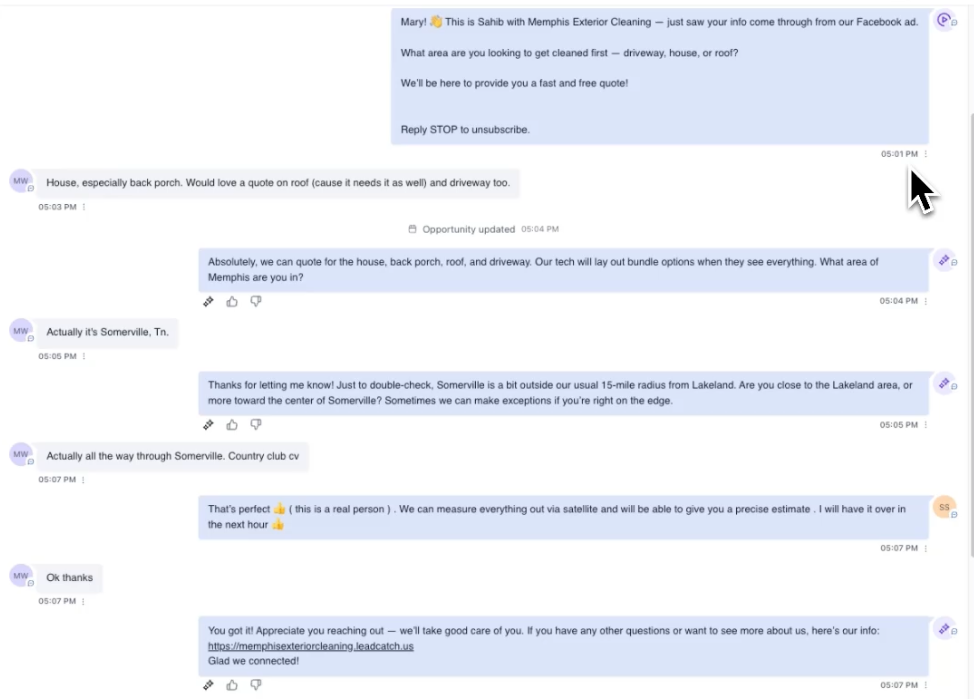
$25,000 in Sales Using Only Facebook Ads: Complete Case Study & LeadCatch Setup
See how one pressure washing client generated $25,000 in sales with 210 leads at $22 CPL using our Facebook ad setup and LeadCatch software for automated invoicing.
· 15 min read
Software & Tools
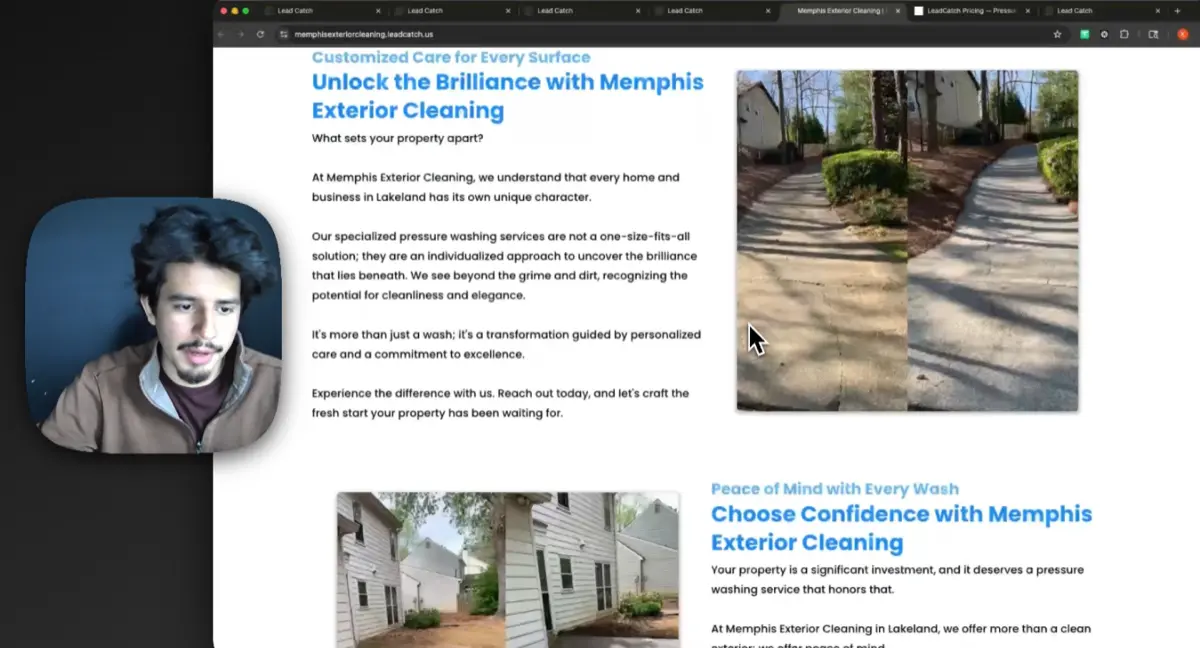
Full Breakdown: The LeadCatch Pressure Washing Website (Every Feature Explained)
Complete walkthrough of a pressure washing website built on the LeadCatch platform. See every feature: forms, calendars, automations, chat widget, and more.
· 15 min read
Software & Tools
AI Video Automation for Pressure Washing: Create Ads & Social Content in 2 Minutes
See how LeadCatch uses AI to automatically create pressure washing video ads and social media content in under 2 minutes. Upload your job videos, and the bot does the rest.
· 8 min read